Cómo Reparar Archivos de Excel Dañados y Recuperar Datos: Guía Completa [2026]
-
 Escrito por Kees Jan Meerman
 -
 Actualizado el Aug 10, 2026
 -
 Min Lectura 10 Min
 - Comparte

Está mirando fijamente una hoja de cálculo importante y Excel le lanza una avalancha de mensajes de error: «El archivo está dañado y no se puede abrir» o «Excel ha encontrado contenido ilegible». Dado que contiene datos presupuestarios vitales o listas de clientes, el pánico es inevitable. Vemos este escenario constantemente, pero la corrupción rara vez implica una pérdida total de datos.
Los archivos de Excel modernos contienen XML, fórmulas, formato y metadatos que funcionan de forma sincronizada. Si falla un componente (debido a una subida de tensión o a cambios no guardados), todo su archivo xlsx puede volverse ilegible. Sus datos permanecen intactos, pero Excel no puede interpretarlos.
Le explicamos cómo se dañan los archivos de Excel y qué soluciones funcionan realmente.
8 causas comunes de la corrupción de archivos de Excel
La corrupción de los archivos de Excel se debe a metadatos defectuosos o a errores en la estructura del archivo. Cuando guarda un archivo, la información se escribe en capas: datos, formato y, a continuación, el índice. Si este proceso se interrumpe, el resultado es un archivo que parece completo, pero que no se puede abrir.
Estas son las causas más comunes de corrupción de archivos de Excel.
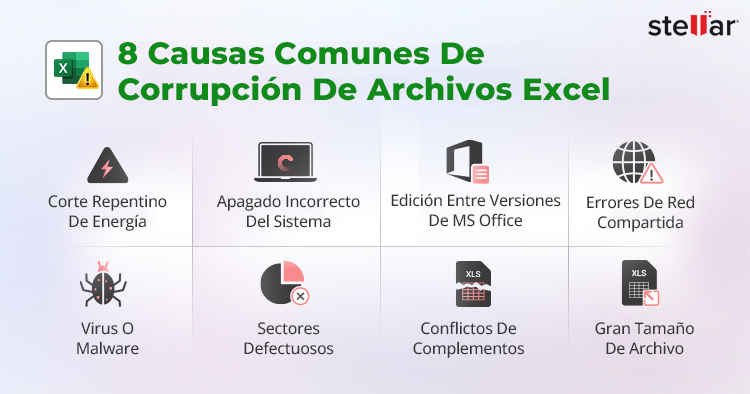
- Corte repentino de corriente: su ordenador se queda sin alimentación durante el proceso de guardado. Excel escribe los datos, pero no el índice final.
- Apagado incorrecto del sistema: Forzar el cierre de Windows impide que se envíe la señal de finalización que indica al sistema de archivos que el proceso de guardado ha concluido.
- Virus o malware: el malware sobrescribe los encabezados del archivo o cifra partes del mismo, lo que hace que su estructura resulte ilegible.
- Edición entre diferentes versiones de MS Office: Las incompatibilidades entre las versiones de Excel 2019 y 2010 pueden dañar los encabezados de los archivos.
- Conflictos de complementos: Las herramientas de terceros a veces entran en conflicto con las funciones principales y dañan la estructura del archivo.
- Tamaño de archivo grande: con hojas de cálculo de gran tamaño (más de ~50 MB), a veces se producen errores de escritura.
- Sectores defectuosos: los discos duros tienen sectores dañados que interrumpen la escritura de datos.
- Errores de uso compartido en red: la edición simultánea sin los mecanismos de bloqueo adecuados provoca conflictos de escritura.
Por qué las herramientas convencionales no logran recuperar datos de archivos de Excel
Los usuarios a menudo prueban software de recuperación de archivos genérico. Estos funcionan para documentos eliminados, pero fallan con archivos de Excel.
Esto se debe a que los archivos de Excel utilizan un formato contenedor XML comprimido. Las herramientas genéricas de Recuperación de Datos buscan fragmentos de archivos y los reensamblan secuencialmente. Aunque pueden encontrar los fragmentos, no pueden descomprimir ni reconstruir correctamente la estructura XML interna. El resultado es un archivo que se abre con caracteres ilegibles o mensajes de error.
Por lo tanto, necesita herramientas que comprendan la estructura interna de Excel, no solo su envoltura exterior. Por este motivo, las utilidades integradas y el software de reparación especializado son superiores a las herramientas estándar de Recuperación de Datos.
Cómo diagnosticar el daño en un archivo de Excel
Le recomendamos que compruebe primero si su archivo está realmente dañado antes de intentar cualquier reparación. Estos son los indicios a los que debe prestar atención.
- Mensajes de error que indican que el archivo está dañado o que se ha encontrado contenido ilegible.
- El archivo se abre parcialmente y luego se bloquea.
- Aparecen caracteres ilegibles o símbolos de error en lugar de datos.
- Excel se bloquea al guardar y muestra mensajes de error inesperados.
Si ninguno de estos casos se aplica, es posible que su problema se deba a una incompatibilidad de formato o a una configuración de vista protegida. Lo veremos en un momento.
7 métodos para reparar y recuperar su archivo de Excel
| Método | Cuándo utilizarlo | Índice de éxito | Riesgo de pérdida de datos |
|---|---|---|---|
| Restaurar a la última versión guardada | El archivo se dañó mientras se trabajaba en él, pero no se guardó | 75–100 % | Mínimo |
| Desactivar la vista protegida | El archivo muestra atención de seguridad o no se puede abrir | 70 % | Bajo |
| Cambiar la extensión del archivo | El archivo XLSX no se puede abrir, pero es posible que XLS funcione | 60 % | Ninguno |
| Desactivar complementos | Excel se bloquea inmediatamente o muestra mensajes de error | 65 % | Ninguno |
| Utilice la herramienta «Abrir y reparar» | El archivo no se puede abrir en absoluto | >80 % | Bajo |
| Guarde en un formato diferente | El archivo se abre, pero muestra errores debido a la pérdida de datos | 75 % | Medio |
| Utilice un software de reparación de Excel | Varios métodos han fallado, datos críticos | >95 %+ | Bajo |
Método 1: Vuelva a la última versión guardada
Si el archivo se daña mientras lo está editando, puede restaurar la última versión válida conocida.
Si el archivo se guardó antes de que se dañara
- Abra el archivo.
- Seleccione «Archivo» > «Información».
- En «Historial de versiones», seleccione la versión que se indicaba cuando cerró el archivo sin guardar.
- Haga clic en «Restaurar».
Si el archivo no se guardó antes de que se dañara
- Seleccione «Archivo» > «Información» > «Administrar libro» > «Recuperar libros no guardados».
- Seleccione el archivo y haga clic en «Abrir».
- Haga clic en «Guardar como» para guardar la versión.
Método 2: Desactivar la vista protegida
La Vista protegida restringe los archivos potencialmente peligrosos, pero a veces los clasifica erróneamente. Desactivarla temporalmente le permite determinar si el archivo está realmente dañado.
Atención: ¡Desactive esta función únicamente para archivos de confianza!
- Abra un nuevo archivo de Excel.
- Seleccione «Archivo» > «Opciones» > «Centro de seguridad» > «Configuración del Centro de seguridad»
- Seleccione «Vista protegida» y desmarque todas las casillas de verificación.
- Haga clic en «Aceptar».
- Intente abrir el archivo dañado.
Si esto funciona, guarde el archivo con un nuevo nombre y vuelva a habilitar la vista protegida inmediatamente.
Método 3: Cambiar la extensión del archivo
Es posible que su versión de Excel no admita la extensión de archivo actual. Las versiones más antiguas a veces rechazan la extensión de archivo «xlsx», pero aceptan «xls».
- Haga clic con el botón derecho del ratón en el archivo dañado y seleccione «Cambiar nombre».
- Cambie la extensión del archivo de «xlsx» a «xls» o viceversa.
- Intente abrir el archivo.
- Si esto funciona, guárdelo en el formato que funcione.
Método 4: Desactivar los complementos
Los complementos COM de terceros suelen entrar en conflicto con las funciones principales
- Abra un nuevo archivo de Excel.
- Seleccione «Archivo» > «Opciones» > «Complementos».
- Establezca «Administrar» en «Complementos COM» y haga clic en «Ir».
- Desmarque todas las casillas y haga clic en «Aceptar».
- Intente abrir el archivo dañado.
Si el problema se ha resuelto, active los complementos uno por uno para identificar cuál es el que causa el problema.
Método 5: Utilice la herramienta «Abrir y reparar»
Si ninguno de los métodos anteriores ha funcionado, pruebe a continuación con la herramienta «Abrir y reparar». Esta utilidad integrada diagnostica y soluciona problemas relacionados con la estructura interna de su archivo de Excel.
- Abra Excel. No abra el archivo directamente.
- Seleccione «Archivo» > «Abrir» > «Examinar».
- Seleccione el archivo dañado.
- Haga clic en la flecha situada junto al botón «Abrir» y seleccione «Abrir y reparar».
- Haga clic en «Reparar».
- Si la reparación falla, haga clic en «Extraer datos» para recuperar valores y fórmulas sin formato.
Método 6: Guardar en un formato diferente
En ocasiones, una sencilla conversión de formato puede solucionar las partes dañadas. Para ello, siga estos pasos:
- Abra el archivo dañado.
- Seleccione «Archivo» > «Guardar como».
- Seleccione «Libro de Excel 97–2003 (xls)» o «Formato SYLK (slk)».
- Guarde el archivo y cierre Excel.
- Vuelva a abrir el archivo y guárdelo como un archivo xlsx.
Método 7: Utilice un software de reparación de Excel
Si todos los métodos integrados mencionados anteriormente fallan, utilice un software especializado en la reparación de Excel. Busque herramientas que ofrezcan compatibilidad con Office, funciones de vista previa y compatibilidad con el sistema operativo. Stellar Repair for Excel es una de las opciones más fiables.
Con la versión de prueba gratuita, puede obtener una vista previa de las reparaciones antes de comprar para asegurarse de que el software resuelve su problema antes de comprometerse.
Algunos métodos avanzados de Recuperación de Datos para archivos de Excel dañados
Si es un usuario experimentado con ciertos conocimientos técnicos, puede probar estas dos soluciones rápidas para recuperar los datos de su archivo (incluso si no está en formato Excel).
1. Utilice referencias externas para recuperar datos sin abrir el libro
- Abra un nuevo libro de Excel.
- En la celda A1, introduzca la siguiente fórmula: =[CorruptedFile.xlsx]Hoja1!A1
[Sustituya los nombres por los datos reales del archivo del que ha perdido sus datos. - Arrastre el controlador de relleno para copiar todos los datos.
2. Restaure sus macros
- Configure el modo de cálculo de Excel en «Manual».
- Abra el archivo.
- Pulse Alt + F11 para abrir el Editor de VBA.
- En el Explorador de proyectos, haga clic con el botón derecho en «Módulos» y seleccione «Exportar archivo» para guardar las macros.
Cuándo debe contratar un servicio profesional de Recuperación de Datos
Los Servicio de recuperación de datos Stellar se encargan de los casos en los que el software por sí solo no basta. Con Stellar, obtienes:
- Diagnóstico experto: determinamos exactamente por qué se ha dañado su archivo.
- Reconstrucción a nivel binario: podemos restaurar estructuras de archivos utilizando nuestros algoritmos patentados.
- Conservación de macros: restauramos libros de trabajo complejos que contienen Código.
- Procesos con certificación ISO: sus datos confidenciales permanecen seguros, por lo que puede estar tranquilo.
Mejores prácticas para evitar la corrupción de archivos de Excel
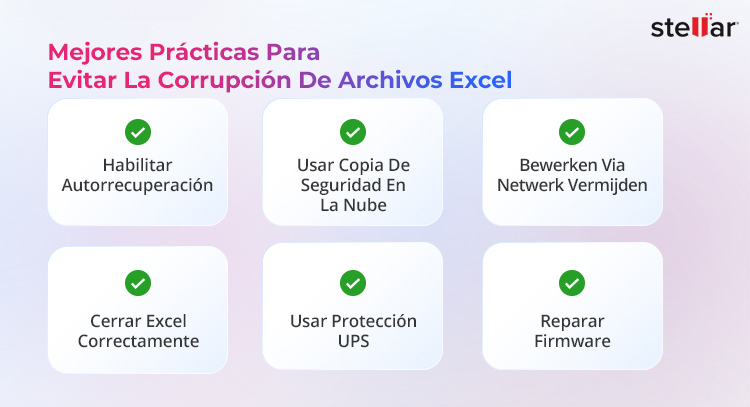
- Active la función de recuperación automática: configure un intervalo de guardado de 10 minutos en las opciones.
- Utilice copias de seguridad en la nube: OneDrive crea automáticamente un historial de versiones.
- Evite editar a través de una red: no edite archivos compartidos sin bloquearlos.
- Cierre Excel correctamente: utilice siempre «Salir» o el botón «X».
- Utilice un SAI: evite la pérdida de datos debido a cortes de corriente.
- Mantenga Office actualizado: instale los parches de inmediato.
Si se enfrenta a otros problemas relacionados con Excel o a una pérdida accidental de datos, estas guías pueden ayudarle a solucionar los problemas y a recuperar sus archivos de forma segura:
- ¿Cómo solucionar el error PXE-E61: Fallo en la prueba de medios, compruebe el error de arranque del cable
- [Solucionado]: ¿Cómo solucionar el error "Se ha especificado un dispositivo inexistente"
- Cómo Solucionar el Error «El Parámetro es Incorrecto | No se Puede Acceder a la Unidad» en Windows
- ¿Cómo Solucionar el Error 2000-0142 Del Disco Duro Dell
Preguntas frecuentes
Sí. Los archivos de Excel son archivos XML comprimidos. Aunque el contenedor del archivo esté dañado, los datos siguen estando presentes. Las herramientas de reparación y los servicios profesionales de Recuperación de Datos, como Stellar, pueden extraer estos datos por usted.
La reparación conserva los datos y el formato. La extracción de datos recupera los valores, pero se pierde el formato. Intente siempre la reparación primero.
Utilice referencias externas para transferir los datos de las hojas de cálculo intactas a un nuevo libro, dejando intacta la hoja de cálculo dañada.
La evaluación inicial suele tardar menos de 24 horas. La Recuperación de Datos completa tarda entre 1 y 3 días laborables.


Acerca del autor